AUGUSTEN TECHNICAL

FRESHERS SHINE

Pages

Showing posts with label text box. Show all posts

Monday, 5 January 2015

LABELS,TEXT BOX,LIST BOX,MENUS IN VISUAL STACK & VISUAL BASIC .NET


LABELS:

As I mentioned before Visual Basic .NET does not support control arrays, so all of the labels on the form will be simple labels. You can go ahead and change the same properties you changed for each command button using the format “lblXxxxxx” for the name. e.g. lblEdit


TEXT BOX:

This object that will allow the user to enter a string, we will also use text boxes to display the last popped string, and the string on top of the stack. The string entered will later be pushed onto the stack. You should set all of their Text properties to an empty string, and name them:

txtEnterString

txtPoppedString

txtTopString


LIST BOX:

The list box on this form will be the object that stores the data of the stack. When the user

enters a string in the text box and clicks the Push button, the string will be placed on the

top of the stack. I will show you the code for this later, but for now just rename the object

lstStack. I also changed the BackColor of the List Box to match rest of the form.


MENUS:

Previous versions of Visual Basic contained a utility called Menu Editor, but .NET uses

Menu Objects. If you ever had you use the Menu Editor you will probably find the .NET

approach a big improvement.


The first thing you should do is select Main Menu from the ToolBox, and then click on

the form. This will create a small box on the top of the form that reads “Type Here”.

Whatever you type in that box will become the caption of the menu. I entered “Stack

Information”, and immediately a “Type Here” box appeared next to and below “Stack

Information”. To create a sub-menu, simply type a caption in the lower box. I used

“Definition”, and below that I used “About this Program”.


Selecting one of these menu items will open a new form that displays some text. Later

we will enter the code for opening these new forms, but for now just rename the menus

“mnuDefinition” and “mnuAbout”


When you click on something other than a menu item, the menus will disappear. Clicking on the on the MainMenu1 icon in the component tray at the bottom of the page will bring it back.


To make the menu stick to the form, bring up the Stack form Properties window and

change Menu under the Window Style section. It should read (none), by clicking on the

down arrow you can change it to MainMenu1.


We are now finished with all of the object’s properties; you can change any of them to fit

your style. These are just the basics to get the program started. Colors, font, font sizes,

pictures, and positions are all optional according to your taste.Click on the Debug menu, and then select Start. Your form will be compiled and an
instance of it will start running. It should look something like this:


Clicking on any of the buttons will have no consequence, but be patient, we will add the


code soon.

ADDING THE CODE TO THE FORMS IN VISUAL STACL & VISUAL BASIC .NET

ADDING THE CODE TO THE FORMS

Now that we have all the forms prepared, we need to add the underlying code. We will
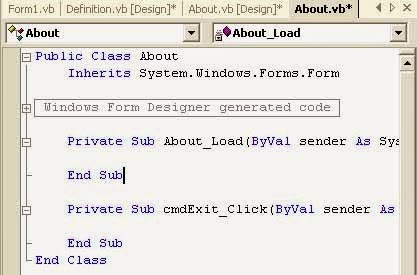
first start with the About form and the Definition forms. To add code double click on the
object you would like to add code to. In this case we need to add code to the Exit
Buttons. So, go to the About form and double click on the Exit button. When you do this
a programming window should appear with a function all set up and ready to insert code


THE SOURCE CODE:


ABOUT FORM:


EXIT BUTTON:


Private Sub cmdExit_Click(ByVal sender As System.Object, ByVal e As
System.EventArgs) Handles cmdExit.Click
Close() ' unload the current form
End Sub


DEFINITION FORM:

EXIT BUTTON:
Private Sub cmdExit_Click(ByVal sender As System.Object, ByVal e As
System.EventArgs) Handles cmdExit.Click)
Close() ' unload the current form
End Sub


STACK FORM:
EXIT BUTTON:
Private Sub cmdExit_Click(ByVal sender As System.Object, ByVal e As
System.EventArgs) Handles cmdExit.Click
End
End Sub
Now we need to add the code for the objects of the Stack form.


STACK FORM CODE:
OPTION EXPLICIT:
Public Index As Integer
Const STACK_LENGTH = 9
‘Note: This is where all the global variables go. The global variables can be accessed
‘anywhere in the program. Option Explicit also provides strong type checking in VB,
‘and makes the programmer declare any variables before they are used

Private Sub frmStack_Load(ByVal sender As System.Object, ByVal e As
                                                       System.EventArgs) Handles MyBase.Load
Index = 0

End Sub


Command Buttons:
PUSH:
Private Sub cmdPush_Click(ByVal sender As System.Object, ByVal e As
System.EventArgs) Handles cmdPush.Click
Push()
End Sub

POP:
Private Sub cmdPop_Click(ByVal sender As System.Object, ByVal e As
System.EventArgs) Handles cmdPop.Click
Pop()
End Sub

PEEK:

Private Sub cmdPeek_Click(ByVal sender As System.Object, ByVal e As
System.EventArgs) Handles cmdPeek.Click
Peek()
End Sub

INITALIZE

Private Sub cmdInitalize_Click(ByVal sender As System.Object, ByVal e As
System.EventArgs) Handles cmdInitalize.Click
Initalize()
End Sub

Text Box Code:
Private Sub txtEnterString_KeyPress(KeyAscii As Integer)
Const ENTERKEY = 13
If KeyAscii = ENTERKEY Then
Push()
End If
End Sub

Push

Public Function Push()
If txtEnterString.Text = "" Then
Beep()
MsgBox("Nothing Entered to Push")
ElseIf Index <= STACK_SIZE Then
lstStack.Items.Insert(0, txtEnterString.Text)
txtEnterString.Text = ""
Index = Index + 1
Else
Beep()
MsgBox("Stack is Full")
End If
End Function

Pop

Public Function Pop()
If Index = 0 Then
Beep()
MsgBox("Stack is Empty")
Else
txtPoppedString.Text = lstStack.Items.Item(0)
lstStack.Items.RemoveAt(0)
Index = Index - 1
End If
End Function

Peek

Public Function Peek()
If Index = 0 Then
MsgBox("Stack is empty")
Else
txtTopString = lstStack.Items.Item(0)
End If
End Function

Initialize

Public Function Initialize()
If Index = 0 Then
Beep()
MsgBox("Stack is Clear")
Else
While Index > 0
lstStack.Items.RemoveAt(0)
Index = Index - 1
End While
End If
txtPoppedString.Text = ""
txtTopString.Text = ""
End Function

Menu_Click

Private Sub mnuDefinition_Click(ByVal sender As System.Object, ByVal e As
System.EventArgs)Handles mnuDefinition.Click
Dim x As frmDefinition = New frmDefinition()
x.Show()
End Sub
Private Sub mnuAbout_Click(ByVal sender As System.Object, ByVal e As
System.EventArgs) Handles mnuAbout.Click
Dim y As frmAbout = New frmAbout()
y.Show()
End Sub
Now you should be able to execute the program. If there are errors in execution then you
may have some typing mistakes. Double check your code and try again. If you have any
questions go to the VB help and search for the control that you are having problems with.
You will get better results if you search for the control using  the same spelling that Microsoft did, i.e. mainmenu instead of main menu.